
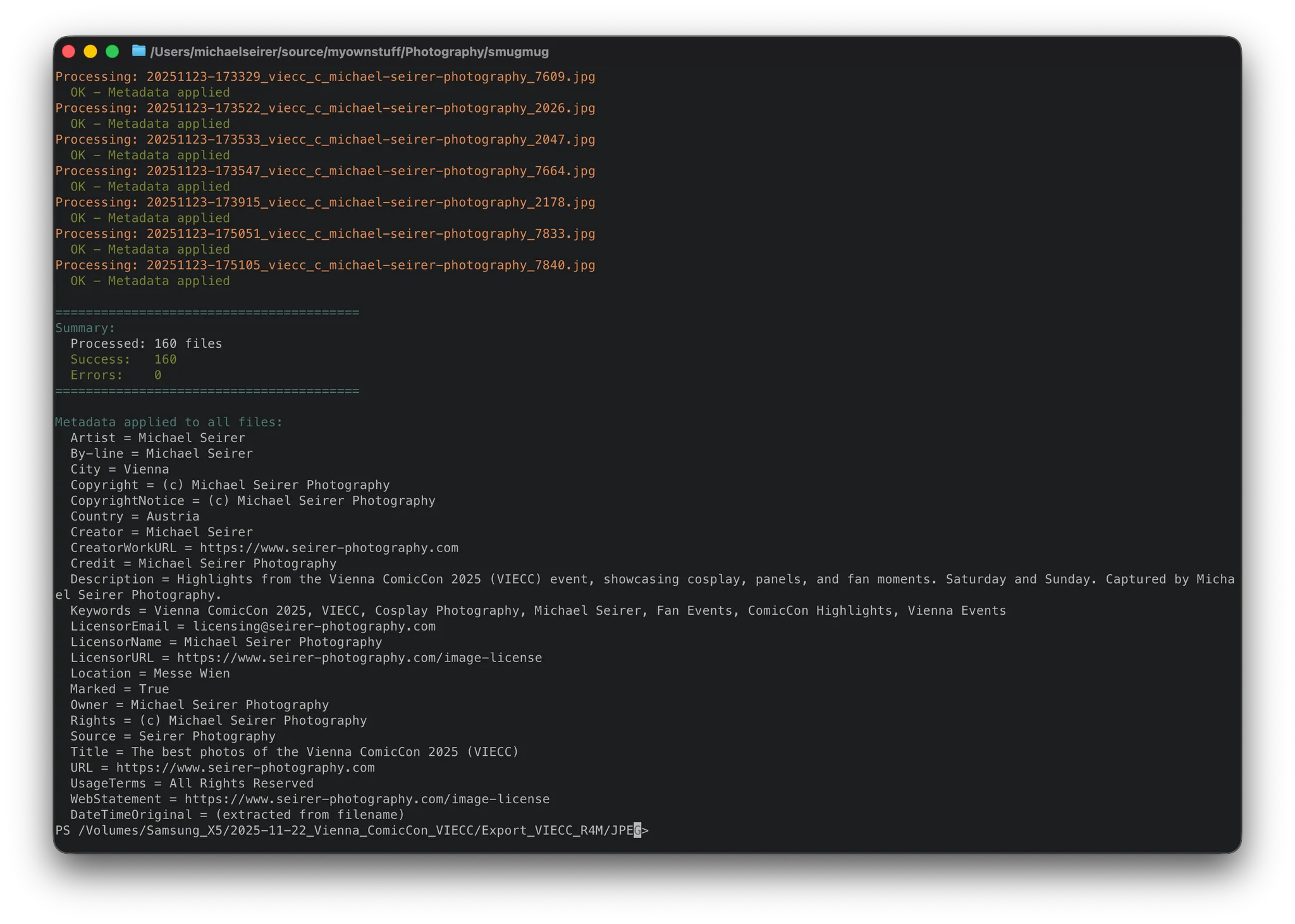
Example output of the apply-metadata.ps1 script
The Problem
As a photographer, properly tagging images with metadata is essential for copyright protection, SEO, and organization. Adobe Lightroom handles this well for new exports, but I ran into a gap: what about the hundreds of gallery images I’d already exported? I had some basic metadata exported but it was only containing mainly my name and the website URL.
Lightroom’s metadata tools work great during the export process, but retroactively applying consistent metadata to existing JPGs isn’t straightforward. I needed a solution that could batch-process entire directories of already-exported images with proper IPTC/EXIF data including creator info, copyright notices, licensing terms, and event-specific details without touching the file date (last modified date).
Also note the special URL for licensing information on my website which is referenced in the metadata as well.
This information is not only helpful for website visitors who want to license my images and for enforcing my copyright when someone uses them without permission, but it also helps search engines understand what is shown in the image and how licensing is regulated. Google actually shows some of this information in their image search. Unfortunately, my gallery service provider cannot output JSON-LD or similar information yet.
The Solution
I built a PowerShell script that wraps the excellent exiftool by Phil Harvey to apply comprehensive metadata to all JPGs in a directory. It handles both fixed metadata (creator info, copyright, URLs) that stays consistent across all my work, and variable metadata (title, description, keywords, location) that changes per shoot.
A key feature: the script derives the value for the “DateTimeOriginal” timestamp from filenames following the “YYYYMMDD-HHMMSS*” pattern. An example file name is “20251217-190308_tu_orchester_muth_8823.jpg“. This preserves accurate capture times even when the original EXIF data is missing or incorrect.
The suggested solution is using PowerShell which works on Windows and macOS as well.
Handling the volatile parts
Via an Alfred-Automation on macOS I copy this file to all my exported JPG-directories that will be uploaded to my gallery in the next step.
The Title, Description, Keywords, City, Country and Location are (potentially) different from each shooting. The Script has default values but also asks at runtime. After entering new values (or ENTER to keep the old ones) the script modfies itself, saving these as the new defaults. This way, I have to enter them only once for a given shoot. This way, I keep my metadata consistent, even if I export images again or add new ones. This .ps1 file is also backed up for later usage if needed.
The $FixedMetadata section contains your permanent branding - artist name, copyright notice, website URLs, and licensing info. Set this once in the script and forget it.
Requirements
PowerShell (works on macOS/Linux via pwsh)
exiftool installed and available in PATH
The Workflow
Export images from Lightroom using my standard naming convention (
YYYYMMDD-HHMMSS_shoot_sequence.jpg). If you do not want to do this, just comment the DateTimeOriginal part line # 108-115)Navigate to the export folder
Run:
_apply-metadata.ps1with Powershell and provide values for the current shootThe script processes each file, applies all metadata fields, and preserves file modification times
The script provides clear feedback - showing each processed file, success/error counts, and a summary of applied metadata.
Embed your Metadata, baby! Why This Matters
Embedded metadata travels with your images. When clients, editors, or anyone downloads your photos, your copyright and contact information remains attached. No separate sidecar files, no external databases - just properly tagged images ready for distribution.
For photographers managing large archives of previously exported work, this script bridges the gap that Lightroom leaves open.
One (possible) Caveat
The script is actually overwriting the exiting exported files. If you dont wan’t to do this, remove the -overwrite_original parameter from the script.
The Script
# Apply EXIF Metadata to JPG files
# Applies metadata to all JPGs in current directory

param(
    [string]$Directory = "."
)

$script:LogFilePath = Join-Path $PSScriptRoot "_apply-metadata.log"
$script:DebugLogging = $true

function Write-Log {
    param (
        [string]$Message,
        [ValidateSet("DBG", "INF", "WRN", "ERR")]
        [string]$Level = "INF",
        [switch]$LogToFile = $false
    )

    $timestamp = (Get-Date).ToString("yyyy-MM-dd HH:mm:ss")
    $logMessage = "[$timestamp][$Level] $Message"

    # Append to log file
    if($LogToFile) {
        Add-Content -Path $script:LogFilePath -Value $logMessage -Encoding UTF8
    }

    # Output to console with colors
    switch ($Level) {
        "DBG" { if($DebugLogging -eq $true) { Write-Host $logMessage -ForegroundColor DarkGray } }
        "INF"  { Write-Host $logMessage -ForegroundColor Cyan }
        "WRN"  { Write-Host $logMessage -ForegroundColor Yellow }
        "ERR" { Write-Host $logMessage -ForegroundColor Red }
    }
}

# ============================================================================
# EDIT THESE VALUES BEFORE RUNNING THE SCRIPT
# ============================================================================
$ImageMetadata = @{
    # Image-specific metadata
    "Title" = "TU Orchester Vienna Concert at Muth Music Hall"
    "Description" = "Concert performance by the TU Orchester Vienna at the Muth Music Hall on December 17, 2025. Captured by Michael Seirer Photography."
    "Keywords" = "TU Orchester Vienna, Muth Music Hall, Concert Photography, Michael Seirer, Vienna Events, Live Music, Orchestra Performance"
    "City" = "Vienna"
    "Country" = "Austria"
    "Location" = "Muth Music Hall"
}
# ============================================================================

# Fixed creator/copyright/licensing values (same for all images)
$FixedMetadata = @{
    # Creator info
    "Artist" = "Michael Seirer"
    "By-line" = "Michael Seirer"
    "Creator" = "Michael Seirer"
    "Credit" = "Michael Seirer Photography"
    "Source" = "Seirer Photography"

    # Copyright info
    "Copyright" = "(c) Michael Seirer Photography"
    "CopyrightNotice" = "(c) Michael Seirer Photography"
    "Rights" = "(c) Michael Seirer Photography"
    "Marked" = "True"
    "Owner" = "Michael Seirer Photography"

    # URLs
    "URL" = "https://www.seirer-photography.com"
    "WebStatement" = "https://www.seirer-photography.com/image-license"
    "CreatorWorkURL" = "https://www.seirer-photography.com"

    # Usage/License terms
    "UsageTerms" = "All Rights Reserved"

    # PLUS Licensor info
    "LicensorName" = "Michael Seirer Photography"
    "LicensorURL" = "https://www.seirer-photography.com/image-license"
    "LicensorEmail" = "licensing@seirer-photography.com"
}

# Check if exiftool is available
if (-not (Get-Command "exiftool" -ErrorAction SilentlyContinue)) {
    Write-Log "exiftool is not installed or not in PATH" -Level "ERR" -LogToFile
    exit 1
}

Write-Log "Script started - Directory: $Directory" -Level "INF" -LogToFile

# ============================================================================
# HELPER FUNCTION: Update the script file with new default values
# This modifies the source script so that user-provided values become the new
# defaults for the next run.
# Parameters:
#   - ScriptPath: Full path to this script file
#   - Metadata: The $ImageMetadata hashtable with updated values
# ============================================================================
function Update-ScriptDefaults {
    param(
        [string]$ScriptPath,
        [hashtable]$Metadata
    )

    $content = Get-Content -Path $ScriptPath -Raw

    # Update each field in the $ImageMetadata block
    foreach ($key in $Metadata.Keys) {
        $value = $Metadata[$key]
        # Escape special regex characters in the value and handle quotes
        $escapedValue = $value -replace '\\', '\\' -replace '\$', '$$'
        # Match the pattern: "Key" = "..." and replace with new value
        $pattern = '(?m)^(\s*"' + $key + '"\s*=\s*)"[^"]*"'
        $replacement = '$1"' + $escapedValue + '"'
        $content = $content -replace $pattern, $replacement
    }

    # Write updated content back to the script
    Set-Content -Path $ScriptPath -Value $content -NoNewline
}

# ============================================================================
# HELPER FUNCTION: Prompt user for a metadata value with a default
# Displays the field name and current default value, allowing the user to
# either press ENTER to accept the default or type a new value to override it.
# Parameters:
#   - FieldName: The label to display for the field (e.g., "Title", "City")
#   - DefaultValue: The pre-configured default value from $ImageMetadata
# Returns: The default value if user presses ENTER, otherwise the user's input
# ============================================================================
function Get-MetadataValue {
    param(
        [string]$FieldName,
        [string]$DefaultValue
    )

    # Display the field name and its current default value
    Write-Host "`n${FieldName}: " -NoNewline -ForegroundColor Cyan
    Write-Host $DefaultValue -ForegroundColor Yellow

    # Prompt user for input - empty input means accept default
    $userInput = Read-Host "Press ENTER to accept or type a new value"

    # Return default if input is empty/whitespace, otherwise return user's input
    if ([string]::IsNullOrWhiteSpace($userInput)) {
        return $DefaultValue
    }
    return $userInput
}

# ============================================================================
# INTERACTIVE METADATA INPUT
# Prompt user for each editable metadata field, allowing them to review and
# optionally override the default values defined in $ImageMetadata above.
# ============================================================================
Write-Host "`n============================================" -ForegroundColor Cyan
Write-Host "Review/Edit Metadata Values" -ForegroundColor Cyan
Write-Host "============================================" -ForegroundColor Cyan

# Prompt for each field - user can press ENTER to keep default or type new value
$ImageMetadata["Title"] = Get-MetadataValue -FieldName "Title" -DefaultValue $ImageMetadata["Title"]
$ImageMetadata["Description"] = Get-MetadataValue -FieldName "Description" -DefaultValue $ImageMetadata["Description"]
$ImageMetadata["Keywords"] = Get-MetadataValue -FieldName "Keywords" -DefaultValue $ImageMetadata["Keywords"]
$ImageMetadata["City"] = Get-MetadataValue -FieldName "City" -DefaultValue $ImageMetadata["City"]
$ImageMetadata["Country"] = Get-MetadataValue -FieldName "Country" -DefaultValue $ImageMetadata["Country"]
$ImageMetadata["Location"] = Get-MetadataValue -FieldName "Location" -DefaultValue $ImageMetadata["Location"]

# ============================================================================
# UPDATE SCRIPT DEFAULTS
# Save the user's input as the new default values in this script file
# ============================================================================
Update-ScriptDefaults -ScriptPath $PSCommandPath -Metadata $ImageMetadata
Write-Log "Defaults updated in script for next run" -Level "DBG" -LogToFile

# Merge image metadata with fixed metadata
$metadata = @{}
foreach ($key in $ImageMetadata.Keys) {
    $metadata[$key] = $ImageMetadata[$key]
}
foreach ($key in $FixedMetadata.Keys) {
    $metadata[$key] = $FixedMetadata[$key]
}

# ============================================================================
# CONFIRMATION
# Display a summary of all final metadata values and ask for confirmation
# before proceeding with the actual file processing.
# ============================================================================
Write-Host "`n============================================" -ForegroundColor Cyan
Write-Host "Final Metadata to Apply:" -ForegroundColor Cyan
Write-Host "============================================" -ForegroundColor Cyan
Write-Host "  Title:       $($ImageMetadata["Title"])" -ForegroundColor Yellow
Write-Host "  Description: $($ImageMetadata["Description"])" -ForegroundColor Yellow
Write-Host "  Keywords:    $($ImageMetadata["Keywords"])" -ForegroundColor Yellow
Write-Host "  City:        $($ImageMetadata["City"])" -ForegroundColor Yellow
Write-Host "  Country:     $($ImageMetadata["Country"])" -ForegroundColor Yellow
Write-Host "  Location:    $($ImageMetadata["Location"])" -ForegroundColor Yellow

# Final confirmation before processing files
$confirm = Read-Host "`nProceed with these values? (y/n)"
if ($confirm -ne "y") {
    Write-Log "Operation aborted by user" -Level "WRN" -LogToFile
    exit 0
}

# Build exiftool arguments (escape values for bash)
# -P preserves file modification time
$exifArgs = @("-overwrite_original")

foreach ($key in $metadata.Keys) {
    $value = $metadata[$key]
    # Escape single quotes for bash by replacing ' with '\''
    $escapedValue = $value -replace "'", "'\''"
    $exifArgs += "-$key='$escapedValue'"
}

# Find all JPG files
$jpgFiles = Get-ChildItem -Path $Directory -Filter "*.jpg" -File
$jpgFiles += Get-ChildItem -Path $Directory -Filter "*.jpeg" -File

if ($jpgFiles.Count -eq 0) {
    Write-Log "No JPG files found in: $Directory" -Level "WRN" -LogToFile
    exit 0
}

Write-Log "Found $($jpgFiles.Count) JPG file(s) in $Directory" -Level "INF" -LogToFile
Write-Log "Applying metadata..." -Level "INF" -LogToFile

$successCount = 0
$errorCount = 0

foreach ($file in $jpgFiles) {
    Write-Log "Processing: $($file.Name)" -Level "INF" -LogToFile

    try {
        $filePath = $file.FullName

        # Extract DateTimeOriginal from filename (YYYYMMDD-HHMMSS* or YYYYMMDD_HHMMSS*)
        $fileExifArgs = $exifArgs.Clone()
        if ($file.BaseName -match '^(\d{4})(\d{2})(\d{2})-(\d{2})(\d{2})(\d{2})') {
            $dateTime = "$($Matches[1]):$($Matches[2]):$($Matches[3]) $($Matches[4]):$($Matches[5]):$($Matches[6])"
            $fileExifArgs += "-DateTimeOriginal='$dateTime'"
        } elseif ($file.BaseName -match '^(\d{4})(\d{2})(\d{2})_(\d{2})(\d{2})(\d{2})') {
            $dateTime = "$($Matches[1]):$($Matches[2]):$($Matches[3]) $($Matches[4]):$($Matches[5]):$($Matches[6])"
            $fileExifArgs += "-DateTimeOriginal='$dateTime'"
        } else {
            Write-Log "  Could not extract date/time from filename: $($file.Name)" -Level "WRN" -LogToFile
        }

        $exifArgsStr = ($fileExifArgs + "`"$filePath`"") -join " "

        $result = & bash -c "exiftool $exifArgsStr" 2>&1

        if ($LASTEXITCODE -eq 0) {
            Write-Log "  OK - Metadata applied to $($file.Name)" -Level "INF" -LogToFile
            $successCount++
        } else {
            Write-Log "  ERROR processing $($file.Name): $result" -Level "ERR" -LogToFile
            $errorCount++
        }
    }
    catch {
        Write-Log "  ERROR processing $($file.Name): $_" -Level "ERR" -LogToFile
        $errorCount++
    }
}

Write-Log "========================================"  -Level "INF" -LogToFile
Write-Log "Summary: Processed $($jpgFiles.Count) files - Success: $successCount, Errors: $errorCount" -Level "INF" -LogToFile
Write-Log "========================================" -Level "INF" -LogToFile

# Log what was applied
Write-Log "Metadata applied to all files:" -Level "INF" -LogToFile
foreach ($key in $metadata.Keys | Sort-Object) {
    Write-Log "  $key = $($metadata[$key])" -Level "DBG" -LogToFile
}
Write-Log "  DateTimeOriginal = (extracted from filename)" -Level "DBG" -LogToFile
Write-Log "Script completed" -Level "INF" -LogToFile